Translate

Wednesday, 1 October 2014

VCOrganizer Build 370 has been released.


New Features


SmartLinks

You can select multiple items when linking items. SmartLinks data can be synced to Outlook. You can sync the SmartLinks information from one device to the other devices.

Tasks/Events Icon

Item icon is synced to Outlook. You can sync the tasks/events icon from one device to the other devices.

VCOrganizer Outlook Add-in

This is an optional program. With the new VCOrganizer Outlook Add-in installed:
  1. You can use the SmartLinks feature to link items from Outlook (add, delete or modify) and the SmartLinks information will be synced back to VCO. 
  2. You can change item icon from Outlook (e.g. add an icon to your task or event)

Real-time sync

Real-time sync in vcChat is now integrated with AutoSync. If AutoSync feature enabled and the new Outlook Add-in installed on your PC, when you create/update/delete items in Outlook or VCO, they will be synced automatically in real-time. There is no need to schedule the sync interval anymore.

Others

  • In Calendar -> List view, it supports multi-select mode.
  • You can import more than one Android Calendar to VCO Calendar (e.g. the Public Holidays Calendar). In VCO Calendar -> Menu -> Import, you can select which Calendar you would like to import. This is a one-time import. It won't import any items if you update the events in Android Calendar after the import. But you can always rerun the import anytime you want. If you update the imported events in VCO, they will be synced to you Android Calendar. If you want to keep the events in sync with your Android Calendar, in VCO Calendar -> Menu -> Settings: "Sync with Mobile Calendar", you can select with Android Calendar you want to sync with.
  • Set tasks/events icon in multi-select mode.
  • The UI is fine-tune for high resolution screen and tablet devices such as the Samsung Tab S.

Bug Fixes

  • If the new item is synced to Outlook using vcChat but VCO doesn't receive any ACK from Outlook, it may cause duplicate.
  • After disabling the item alert or deleting the item, VCO still fires off the alerts.
  • Pattern login is slow


Thursday, 18 September 2014

VCOrganizer Pilot Test

The new release of VCOrganizer is ready for user testing. If you would like to join the test, please send the following information to support@vecal.biz.

1. Device Model:
2. Android OS version:
3. Windows Version (32bit/64bit):
4. Outlook Version (32bit/64bit):
5. SyncCenter Version installed on your PC:
6. VCO version installed on your phone (In VCO -> Settings):
7. Have you purchased AutoSync (Yes/No)?


New Features

SmartLinks

You can select multiple items when linking items. SmartLinks data can be synced to Outlook. You can sync the SmartLinks information from one device to the other devices.

Tasks/Events Icon

Item icon is synced to Outlook. You can sync the tasks/events icon from one device to the other devices.

VCOrganizer Outlook Add-in

This is an optional program. With the new VCOrganizer Outlook Add-in installed:
  1. You can use the SmartLinks feature to link items from Outlook (add, delete or modify) and the SmartLinks information will be synced back to VCO. 
  2. You can change item icon from Outlook (e.g. add an icon to your task or event)

Real-time sync

Real-time sync in vcChat is now integrated with AutoSync. If AutoSync feature enabled and the new Outlook Add-in installed on your PC, when you create/update/delete items in Outlook or VCO, they will be synced automatically in real-time. There is no need to schedule the sync interval anymore.

Others

  • In Calendar -> List view, it supports multi-select mode.
  • You can import more than one Android Calendar to VCO Calendar (e.g. the Public Holidays Calendar). In VCO Calendar -> Menu -> Import, you can select which Calendar you would like to import. This is a one-time import. It won't import any items if you update the events in Android Calendar after the import. But you can always rerun the import anytime you want. If you update the imported events in VCO, they will be synced to you Android Calendar. If you want to keep the events in sync with your Android Calendar, in VCO Calendar -> Menu -> Settings: "Sync with Mobile Calendar", you can select with Android Calendar you want to sync with.
  • Set tasks/events icon in multi-select mode.
  • The UI is fine-tune for high resolution screen and tablet devices such as the Samsung Tab S.

Bug Fixes

  • If the new item is synced to Outlook using vcChat but VCO doesn't receive any ACK from Outlook, it may cause duplicate.
  • After disabling the item alert or deleting the item, VCO still fires off the alerts.
  • Pattern login is slow


Wednesday, 17 September 2014

VCOrganizer Outlook AddIn

The VCOrganizer Outlook AddIn allows user to manage VCOrganizer data using the Outlook interface. You can do the following with this AddIn:
  • Link and unlink notes/tasks/events/contacts
  • Edit Tasks/Events icon.
  • Open the linked items
  • Links and Icons can be synced to VCOrganizer on your Android devices.
  • Manage VCOrganizer Attachments in Outlook
Remark:

  • You need to upgrade to the latest VCOrganizer  (Build 369 or above).
  • This is optional program. VCOrganizer can still sync with Outlook without installing this AddIn. But you must need to install SyncCenter on your PC.
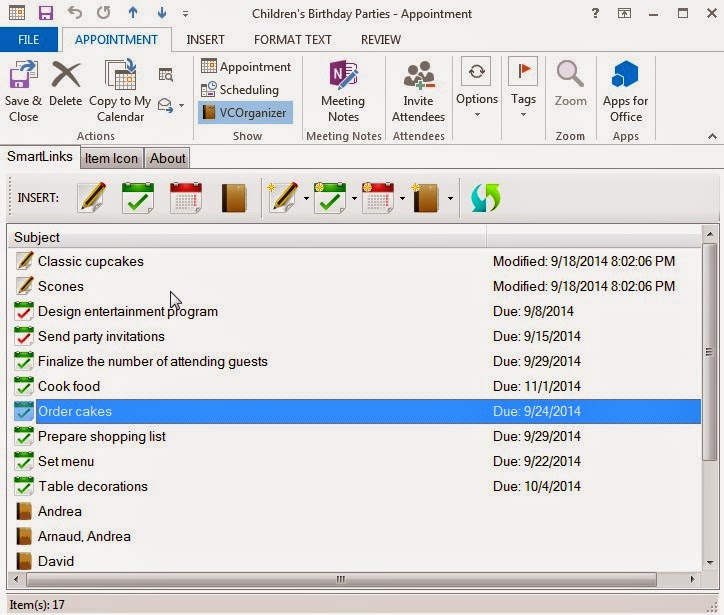


SmartLinks which links an Outlook Appointment to notes, tasks and contacts 


You can assign icon to Task and Appointment


Steps to Link Items


The following example will show you how to link the tasks and contacts to an event (Appointment).


Open or create an event from Outlook. Click the VCOrganizer icon () in the toolbar to open the VCOrganizer region.


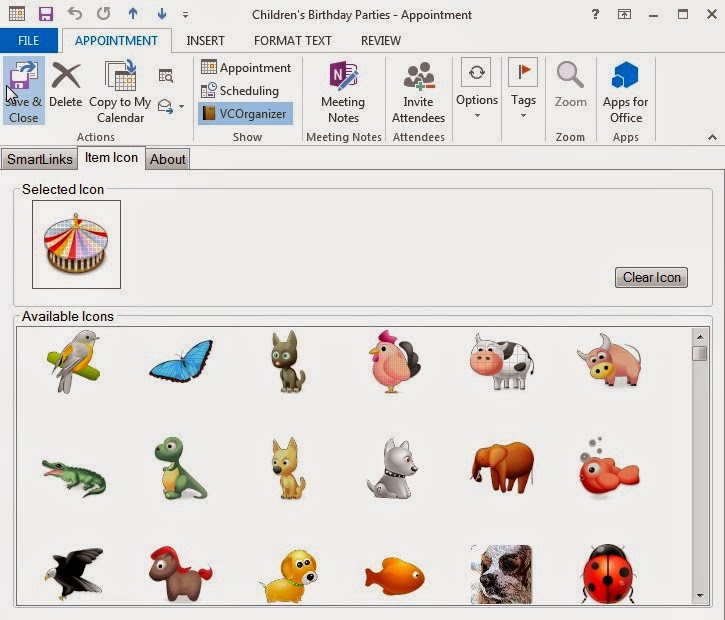
In the VCOrganizer region, you can see the "SmartLinks" and "Icon" tab.


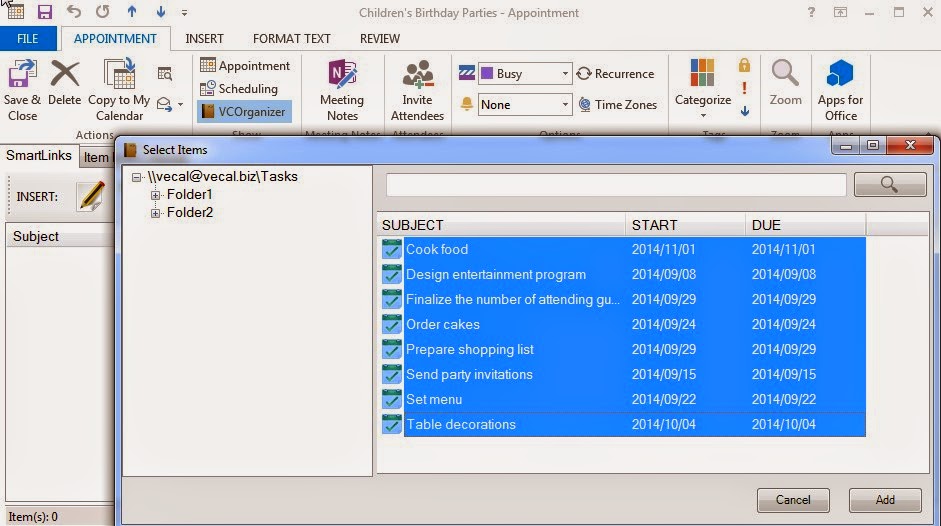
 In the "SmartLinks" tab, click the "Add Task" button () to open the "Select Tasks" dialog.


In the "Select Tasks" screen, you can select the tasks you would like to add and then click the "Add" button.


Now, you should see the tasks in the event. To open the linked item, just double-click on the item in the list. To unlink items, select the items from the list and press the delete button on Keyboard or right-click on the items and select the "Unlink Selected Item(s)" from the menu.


You can also create new tasks (notes, events or contacts) and link it to this event directly. To create a new task and link to this event, click the "New Task" button ().  If you want to create the new task in different folder, please select the dropdown menu (next to the New Task button) and select the folder from the dropdown list.


In the Icon tab, you can also assign icon to this event.


When the event is synced to VCOrganizer, you can see the event icon and it's linked items.


To manage the SmartLinks items, tap on the "SmartLinks" icon () to open the SmartLinks menu. To add or delete any links, select "Manage SmartLinks". If you want to create a new items, such as creating a new note, select "Create Linked Note".


In the Manage SmartLinks screen, you can add/delete any links. To add items, you can tap on the Events, Tasks, Notes or Contacts icon in the toolbar. 


Additional Information

  • When you link items in subfolders, if you are using VCO Pro, you will only see the tems in the default folder to VCO Pro on your device. It's because VCO Pro only sync items in the default folders.
  • If you are using VCO Enterprise+ or VCOrganizer Pro with Enterprise extension, you will see the linked items that created in the subfolders.
  • The SmartLinks internal format has been changed. For items with old format, the SmartLinks information won't sync to Outlook. To upgrade to the new SmartLinks, open the item and select "Manage SmartLinks" from the SmartLinks icon. It will upgrade automatically. 


Manage VCOrganizer Attachments in Outlook


Due to the limitation of Outlook, you can usually attach files up to 10M in total. However, there is no limit in VCOrganizer. When you sync files from VCOrganizer to Outlook, the file will first been added to the default Outlook item. If it reaches the limit, the files will be stored in SyncCenter Vault on your PC (C:\Users\<username>\AppData\Local\Vecal\VCOrganizer\vault\external).
With the VCOrganizer Outlook AddIn, you view the files that SyncCenter stored in SyncCenter Vault. You can also add or delete any files from the AddIn.

To view the attachments in SyncCenter Vault, click the "VCOrganizer" button in Outlook to open the AddIn, then, click the "Attachments" button.

To add files:

Click the Add button and select files.
Drag the files from Windows File Explorer to the Attachments list.
Select the files from Windows File Explorer, press Ctrl+C to copy the files, and press Ctrl+V in the Attachments list to paste the copied files.

To delete files:

Select the files from attachments list, and press the "Delete" button or right click and select "Delete" from the menu.

To copy files from Attachments list to other directories on your PC:

VCOrganizer AddIn allows users to easily copy the files to any directories on your PC.
Select the files from the attachments list, and press the Ctrl+C. You can then paste the files to any folder you want. Just like the normal Windows Copy/Paste.


Attachments in Outlook Item Note.


Attachments in VCOrganizer Vault


Backup SyncCenter Vault on your PC


On your PC there are two directories in the SyncCenter Vault:

1.  C:\Users\<username>\AppData\Local\Vecal\VCOrganizer\vault\external
This is where the files are stored in SyncCenter. If you backup your Outlook data and restore to other PC, you also need to copy this folder (including all the files and subfolders in this directory) to your new PC. Depend on the username of your new PC, on your new PC, please use the <username>  of your new PC, instead of the <username> of the old PC.

For example:
If the username of old PC is "Peter" and the username of your new PC  is "PeterPon"

Copy the folder  C:\Users\peter\AppData\Local\Vecal\VCOrganizer\vault\external from your old PC to the  C:\Users\PeterPon\AppData\Local\Vecal\VCOrganizer\vault\external on your new PC


2. C:\Users\<username>\AppData\Local\Vecal\VCOrganizer\vault\,outlook
This is the folder to cache the Outlook attachments. There is NO NEED to backup this folder. Also, there is no need to migrate the content in this folder to your new  PC. The cache will be re-created when you sync your new PC with VCOrganizer.


For more information regarding attachments, please see our online Attachments Online Help


Tuesday, 16 September 2014

Real-Time Sync and AutoSync

For users have purchased the AutoSync extension, once the Real-Time Sync is enabled, the tasks, notes, contacts and events will be synced between VCO and Outlook automatically.


To use real-time sync, you need to setup the connection in vcChat and SyncCenter:

1. Connection your vcChat app to your Gmail account.
    Blog: Chat - Connection

2. Connection the SyncCenter on your PC to Gmail another account.
    Blog: Chat - Sync Outlook Setup

3. Please also install the VCOrganizer Outlook AddIn

When you select "Sync with this Outlook client", remember to check the checkbox "Enable Real-Time Sync". You can re-enable the real-time sync if you have forgot to select "Enable Real-Time Sync".


How does it work?

When Real-Time Sync is enabled, the following will happen:


  1. When you create/update/delete items from VCO, it will be synced to Outlook immediately.
  2. When you create/update/delete items from Outlook, it will wait for about 1 minute and sync the items to your devices.
  3. If you have more than one devices, SyncCenter will sync with these devices one by one.
  4. If either the SyncCenter or VCO is not online, the items will be resent when both SyncCenter and VCO are online again.

Additional Information

  1. Real-Time sync and the traditional sync are compatible. You can run the traditional WiFi, Bluetooth or USB Sync anytime you want.
  2. If you have enabled the Real-time Sync, you don't need to enable the AutoSync schedule anymore. In AutoSync screen, please uncheck the "Enable" checkbox on the top right. It will stop the AutoSync process.
  3. Before you start to configure the Real-Time sync, please complete at least one traditional sync (WiFi, Bluetooth or USB) first to sync all the data to your device. If you sync a lot of data in Real-time sync, it will be very slow. About 2~3 seconds per record.
  4. If you have synced your Outlook with more than one devices (phones or tablets), in VCOrganizer, please do not sync the contacts and events to your Gmail account (or any cloud accounts such as Exchange) on more than one devices. This may create duplicates. It's suggested to sync contacts to "Phone-Only" account and sync events to "My Calendar" account on all devices.


Thursday, 10 July 2014

VCOrganizer Enterprise+ (Sale)

VCOrganizer Enterprise+ is on Sale now (), one of the Best Android Outlook Sync Apps, secures your important notes, tasks, contacts and events. It syncs with Outlook client using USB, WiFi or Bluetooth. 

One license syncs with unlimited PCs. The SyncCenter software on your PC is free. That means you can sync your android device with unlimited number of Outlook clients on your PCs with no extra costs from this app.


On Sale for VCOrganizer: < BUY ONE GET ONE FREE >
====================================================
When you buy one VCO Enterprise+ plus license (including One-time license, Annual Subscription or VCO Enterprise Extension license), we will send you another same license key for free.
Please send your ShareIt Order Confirmation email to support@vecal.biz and we will send you another license key within 2 business days.

Promotion Period: From 1st Sep 2014 to 15 Oct 2014

More Information

Sunday, 6 July 2014

QText Widget

QText widget () let you easily send SMS messages.  With the QText widget, you can create some frequently used SMS messages and associate these messages to your friends. You can then quickly send these messages by just a single click.

Here are the steps to add QText widget:

Tap on home screen to add the QText widget.


Tap on the QText widget to define the text message and contacts.


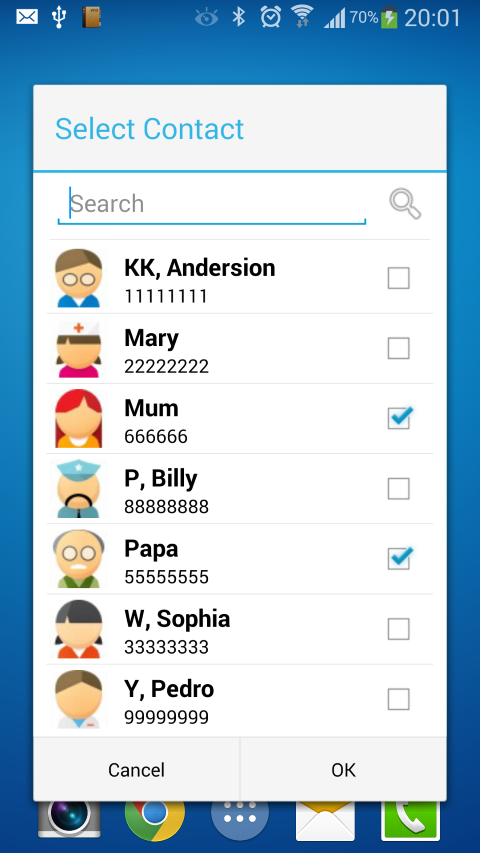
In edit mode, you can select your contacts and Text message.

Add Contacts to WidgetDefine SMS message of the widget


You can also tap on the icon the title bar to define the custom icon of your QText widget.

Define custom icon for the Widget


Save the widget and you should see the widget on your Home screen.

QText widget on Android Home screen


You can tap on the widget on your home screen to send the SMS message.


You can also add multiple QText widgets to your Home screen.


Monday, 30 June 2014

VCOrganizer Release 8 Update (Build 349)

This release is for VCOrganizer Pro and VCOrganizer Lite only, the other versions will be published soon.

New
- A new widget called QText (), you can easily send SMS to a group of people with predefined text (such as "Call Me", "See you in 5 mins" ...etc.). Just tap QText widget on your Home screen and Send.

   You can put multiple QText widgets on your home screen and each of them can have different messages and contacts ...etc.
     For example, “Call Me”,  “Please wait 5 mins”, “On the way home” ….etc.

     When you need to send a quick SMS, you only need to click that widget and click “Send”. In fact, before sending the SMS,  you can still edit the text (If you only need to change the text, you don’t need to switch to Edit mode).

- The DatePicker, you can switch between vertical mode () and horizontal mode ().


Fixes

- For some cases, when you have thousands of contacts, some of them are not synced to your phone.
  (Please also download SyncCenter 8.1.327 from our website)