Translate

Thursday, 10 July 2014

VCOrganizer Enterprise+ (Sale)

VCOrganizer Enterprise+ is on Sale now (), one of the Best Android Outlook Sync Apps, secures your important notes, tasks, contacts and events. It syncs with Outlook client using USB, WiFi or Bluetooth. 

One license syncs with unlimited PCs. The SyncCenter software on your PC is free. That means you can sync your android device with unlimited number of Outlook clients on your PCs with no extra costs from this app.


On Sale for VCOrganizer: < BUY ONE GET ONE FREE >
====================================================
When you buy one VCO Enterprise+ plus license (including One-time license, Annual Subscription or VCO Enterprise Extension license), we will send you another same license key for free.
Please send your ShareIt Order Confirmation email to support@vecal.biz and we will send you another license key within 2 business days.

Promotion Period: From 1st Sep 2014 to 15 Oct 2014

More Information

Sunday, 6 July 2014

QText Widget

QText widget () let you easily send SMS messages.  With the QText widget, you can create some frequently used SMS messages and associate these messages to your friends. You can then quickly send these messages by just a single click.

Here are the steps to add QText widget:

Tap on home screen to add the QText widget.


Tap on the QText widget to define the text message and contacts.


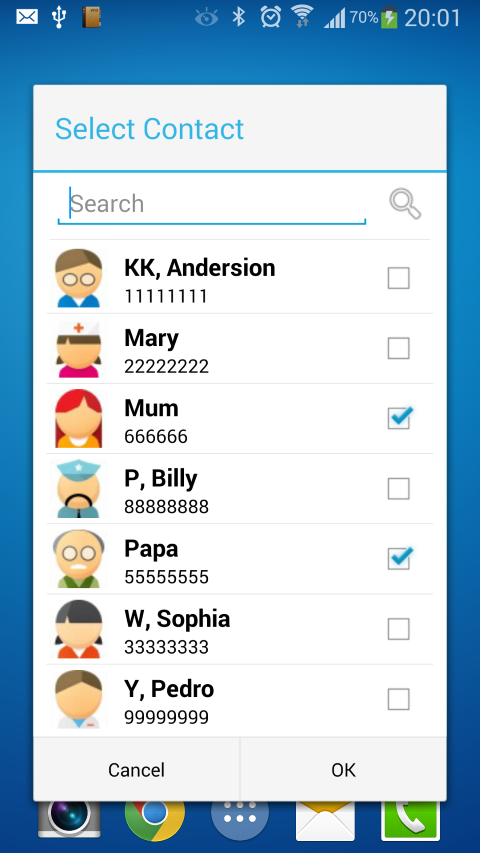
In edit mode, you can select your contacts and Text message.

Add Contacts to WidgetDefine SMS message of the widget


You can also tap on the icon the title bar to define the custom icon of your QText widget.

Define custom icon for the Widget


Save the widget and you should see the widget on your Home screen.

QText widget on Android Home screen


You can tap on the widget on your home screen to send the SMS message.


You can also add multiple QText widgets to your Home screen.


Monday, 30 June 2014

VCOrganizer Release 8 Update (Build 349)

This release is for VCOrganizer Pro and VCOrganizer Lite only, the other versions will be published soon.

New
- A new widget called QText (), you can easily send SMS to a group of people with predefined text (such as "Call Me", "See you in 5 mins" ...etc.). Just tap QText widget on your Home screen and Send.

   You can put multiple QText widgets on your home screen and each of them can have different messages and contacts ...etc.
     For example, “Call Me”,  “Please wait 5 mins”, “On the way home” ….etc.

     When you need to send a quick SMS, you only need to click that widget and click “Send”. In fact, before sending the SMS,  you can still edit the text (If you only need to change the text, you don’t need to switch to Edit mode).

- The DatePicker, you can switch between vertical mode () and horizontal mode ().


Fixes

- For some cases, when you have thousands of contacts, some of them are not synced to your phone.
  (Please also download SyncCenter 8.1.327 from our website)

Wednesday, 21 May 2014

VCOrganizer Version 8 New Features

VCOrganizer/vcCalendar version 8 has been published to Play Store.

Remark: vcCalendar and VCOrganizer have the same functions and features except that vcCalendar doesn't sync with Outlook.


Here is the summary of the major new features in this release:

  1. Built-in Social Network
  2. Share Items between multiple devices
  3. Remote Outlook Sync (Online/Offline)
  4. Multi-select in Notes, Tasks, and Contacts App (you can delete, categorize, add to favourite...etc.)
  5. Auto Snooze (In VCO Settings), keep sending reminder notification until user open it from notification bar. You can set the Snooze minutes, start/end time of the day. If the snoozed time is smaller than the start time it will be scheduled to the start time of that day. If the snoozed time is larger than the end time of that day, it will be scheduled to the start time of tomorrow.
  6. Notifications, you can now set LED indicator, and vibration.
  7. Allow users to change the system default category colors (In VCO Category -> Settings). You can also configure to display the category colors in full-row mode.
  8. When you search items, you can include the filter in your search. For example, search notes in category "A" or "B" and with keyword "ABC". By default, it doesn't include category, you can enable this option in Search Settings.  
Please also download the latest SyncCenter 8 from our website.


Latest Maintenance Release for Version 8: 

Build (343)
For VCOrganizer Pro only. The other versions such as VCO Pro+, VCO Tab ... will be published soon.

New Features


  1. Allow users to configure other XMPP server in SyncCenter (e.g Openfire).  You need to update SyncCenter to 8.1.323 or above.
  2. In Notes App, you can group items by categories when in Grid mode.
  3. In Notes List Widget, you can select to sort by "Title" or "Last Modification Time"
  4. Multi-select allows user to set tasks due date.
  5. VCO DatePicker swipe horizontally.

Bug Fixes

  1. When using Advanced Filter to filter items (e.g: "not in categories"), it shows completed tasks even you have selected not to display completed tasks.
  2. If AutoSnooze is enabled, manual snooze doesn't work.
  3. When sycn with Outlook, in some situation, the Calendar doesn't refresh after sync
  4. In VCO -> Contacts, when select to import "Phone-Only" contacts from Android, contacts from other accounts also imported..

Android Notes Widget

Android Notes Grouped by Categories in Grid Mode

Android Notes Grouped by Categories in List Mode

Android Notes Grouped by Categories in Grid Mode in Tablet


Tuesday, 6 May 2014

VCOrganizer 8 New Features Highlights

VCOrganizer 8 New Features Highlights

Social Network


Build-in Chat App () , which allows user to easily send messages (including Voices, Images, Texts, ..etc to your friends).  You can also encrypt these data before sending to internet.  Not only the communication channel is secured, the data which sends to the server is also encrypted.  

Collaboration


The New Chat App is fully integrated the Notes, Tasks, Contacts and Calendar Apps. That's means you can share your tasks, events, notes or contacts to your friends or partners (in Read-Only mode or Read-Write mode).  For the items you have shared (even in Read-Only mode),  the recipients can also add comments which can be viewed by all other recipients.

For example, if you have an event in your VCOrganizer Calendar which links to a few tasks in VCOrganizer Tasks app using SmartLink. These tasks need to be completed by different people before the start of the event. You can assign these tasks to different people. When they complete the tasks on their devices, it will also update the corresponding tasks on your device. If they have any questions, they can also add comments to the tasks.

Real-Time / Remote Outlook Sync


Sync with remote Outlook client over internet in Real-Time. With the Real-Time sync enabled, when you insert/update/delete items in VCO, it will update to your Outlook clients (at home or office) immediately. You don't need any public IP address. Of course,  the data can also be encrypted before sending.

Share Data with Multiple Devices


You can selectively sync items in VCOrganizer on one device to the other devices.  For example, you have a phone and two tablets devices. When you sync items from Outlook to your phone, these items will be synced to these two tablets. When you update the items in these tablets, they can be synced back to your phone and Outlook also. These two tablets need to run either VCOrganizer App or vcCalendar App.


Sunday, 4 May 2014

Chat - Share VCO Items by Categories

Instead of sharing items one by one, you can share item at categories level.

1) Open a category in VCO Category app, and click the "Share" () button to open the "Share to Friends" dialog. 

For example, for any item assigned with this category, it will be shared as "Allow Update" mode to your friend Anderson and Billy. Also, when you, Billy or Anderson add any comments to the shared items, it will be broadcast to all the members in the group.


For example, if you have assigned the category "K2 Project" to a task, it should show the member list that inherit from the category. If the share is inherited from category, you will see the category icon () in the Member title bar.


If there are more than one categories of the item which have configured share properties, they will be combined. However, the "Read Only" will always come first. 

For example 
Category A - share with Read-Only,  and with member Anderson and Billy
Category B - share with Allow-Update, and with member Anderson and Sophia

If you have a task with Category A and Category B, the effective share mode will be:

Anderson  - Read-Only
Billy - Read-Only
Sophia - Allow-Update


Note:
  • When you assign/update share properties to a category, it will take effect when you start updating the items with that category. For example, if you have a task with category "K2 Project". If you set the category "K2 Project" to share with your friends, the task will not share to your friend until you update the task again.
  • The item level sharing will overwrite the category level sharing. If you have set the task to share with our friends, it will ignore any share properties that inherit  from category level.


Avoid Duplicates of Records When You Share Items

Share data is designed to share your VCO items with your friends. If you want to share the items with your other devices (for example, from VCOrganizer on your Phone to vcCalendar on your tablet ..etc), please note:

Since you can sync contacts or events to/from different sources on your Android devices, please try not to create a loop when you share items. 

Example 1:
You sync items from Outlook to Phone A, and then share items from Phone A to Phone B, and then sync Phone B with the same Outlook client. This is very likely to end up with duplicates.

If both Phone A or Phone B are going to sync with the same Outlook client, you don't need to share data. The data will eventually be synced to both Phone A and Phone B from Outlook.


Example 2:
On Phone A, you have configured to sync contacts or events to your Gmail account on the Cloud. On Phone B you have also configured to sync contacts or events to the same Gmail account.  If you have create an events on Phone A, and then share to Phone B, you will end up create two events on the Cloud. It's because Gmail doesn't check for duplicates.

If you want to share events or contacts from Phone A to Phone B, please make sure you don't configure them to sync with the same Gmail account. For example, on Phone B, you can configure VCO not to sync events to your Gmail account (In VCOrganizer -> Calendar -> Settings, "Sync with Mobile Calendar").

At any time, VCOrganizer will try to check for duplicates when you share items or sync with Outlook. It's suggested to avoid these loop situations.

Chat - Share VCO Items

With the built-in chat feature, you can easily share any VCO items to your friends or colleagues which include notes, tasks, events and contacts.

For the items that you have shared, any members in the shared group can add any comments to that item.
You can share the item in "Read Only" () mode or "Allow Update" () mode.

  • For "Read Only" mode, your friends can update the items on their device, but it will not update the items on your device.
  • For "Allow Update" mode, when your friends update the item, it will also update the item on your device.


In the following example, we are going to show you how to share a task in VCOrganizer. For events, notes or contacts, they are similar.

1) Open the task that you would like to share. Select "Share to Friends" from the menu.


2)  In the "Share to Friends" dialog, you can select any groups or friends you would like to share. After that, in the Task screen, you should see the members of this task.


3) Now, Billy and Sophia should have received this shared task. Since the task is shared as Read-Only, even they have updated the task on their device, it won't update the task on your device.  


4) For all the shared items, members can add any comments they want which includes text messages, photos or voice messages. To add comment, click the comment icon () to go to the Item Comments screen. You can type text message, send photos or voice. Just like what you can do when you chat with friends.

Item Comments Screen
Comments displays in Task screen

5) All the items or comments that you have sent to or received from your friends, you can see these items in your friend's chat screen. In VCOrganizer -> Chat -> Friends, for example, click Anderson KK to open the chat screen. 

In the following example, it shows a task and a comment that you had sent to Anderson. Anderson had sent you an event and a contact.


- This icon indicates that you have received the item, but it's not been imported to VCO App.

- This icon indicates that you have received the item, and it's been imported to VCO App.

- This icon indicates that your have sent the item to your friend and he/she has received it.

- This icon indicates that the item is still in your local queue and will be sent when your friend is online.


Note:
  • By default, the comments added by the item owner (who share this item) will be broadcast to all members. However, the comments sent from members will not be broadcast to other members. If you have selected "Auto Forward Comments" option when you share the item, all the comments sent from members will be forwarded to other members automatically.
  • You can use "Share to Friends" option at any time to change the share settings of that item such as change from "Allow Update" to "Read-Only", or add/delete members, or change the "Auto Forward Comments" option.
  • When you share any recurring event instances, the whole recurring series will be shared.