Translate

Tuesday, 14 July 2015

"Show Events Only" in VCO Calendar

Question
=======
By default, tasks show up on VCO Calendar, how do you turn off this feature?

Answer
======
To disable the “Show Tasks” feature in VCO Calendar, please go to VCO -> Calendar -> Menu -> Settings, check the option “Show Events Only”.

Tuesday, 30 June 2015

Please download and install the latest SyncCenter 9.1.369

Please download and install the latest SyncCenter 9.1.369


This release fixes the following issues:
1
  • Outlook shows task reminder popup when during sync process.

    “The reminder for “<subject>” will not appear because the item is in a folder that doesn’t support reminders. Is this OK?”

  • When starting SyncCenter, it starts Outlook which causes problems in some situations.

Wednesday, 3 June 2015

Lock Time Zone in VCOrganizer Calendar

Problem

When changing time zone (i.e. - going one timezone east from Mountain time to Central time) all of the all-day events on the calendar are broken up into 2 days going from 11PM one day to 11PM the next day.


Solution

This works as designed. By default, VCO Calendar displays events using the event time zone. It displays the actual time of the events based on the original time zone of the events. So, when you move to different time zone, the start/end time of the events will be shifted to reflect the original time.

In VCO -> Calendar -> Settings, there is an option called "Lock Time Zone". You can enable this option if you want to keep the times and dates of the events even if you move to another time zone.

Tuesday, 26 May 2015

Is there the ability to create a reminder of a contact?

Question
Is there the ability to create a reminder of a contact that you can click on the reminder to call that contact?


Answer
Yes, you can flag a contact and add reminder of a contact.
  • Edit the contact from VCO Contacts App.
  • Click the Flag icon on the top right.
  • In the Set Flag popup menu, select "Custom"
  • You can then set reminder “Flag Contact” screen.
  • If you have set the "Due Date" of the contact, you will see the flagged contact in VCO Calendar.
  • When you get the reminder, you can open the contact from the reminder and make a call from the VCO Contact screen.


Thursday, 14 May 2015

How to install VCOrganizer on new phone/tablet?

1. Install VCOrganizer on your new device:
a) For VCOrganizer purchased from Google Play Store (such as VCO Pro, VCO Tab … etc.)

  • There is no need to enter any license key for VCOrganizer purchased from Play Store.
  • Google checks the license based on the gmail account registered on your device. 
  • Please register your new device with the same gmail account. The one that you used to purchase VCOrganizer. Then, go to Play Store to download it again.
  • If you have changed to use a new gmail account on your new phone, you need to purchase VCOrganizer again.


b) For VCOrganizer license key purchased from ShareIt or MyCommerce (such as VCO Pro+, VCO Ent+ … etc.)

  • Go to Play Store to download VCOrganizer again. 
  • Then, register the key in VCO -> Settings screen.


2. After installing the latest VCOrganizer on your device, please also download and install the latest SyncCenter on your PC.


3. Then, sync with Outlook again.


Remark: Do not try to restore the old VCO backup files from old device to the new device. It’s not recommended.


Monday, 4 May 2015

Import Photos from Android Gallery to VCOrganizer Calendar

The mobile camera makes it easy for you to take photos/video and save on your phone. However, as the number of photos/video increases to thousands, it's very difficult to manage or find the photos/video from Gallery.

To better organize your photos, you can import the photos/video to VCOrganizer. It makes your photos/video more organized.  The photos/video are grouped by events or date. You can also search by keywords ...etc.

If you have enabled Sync Attachments feature in SyncCenter on your PC, these photos can be synced to Outlook too. It's easy.

Thursday, 23 April 2015

VCOrganizer Pro 9.1.1.422 is ready for download


VCOrganizer Pro 9.1.1.422 has been published. You can download it from Play Store. For the other versions such as VCO Ent+, VCO Pro+, VCO Tab ..etc, they will be published soon.

Highlights

  • Display Photos in Notes (List View and Grid View) and Tasks List View.

    By default, this feature is enabled. You can disable it from Menu -> “Show Photos”
  • Show Android Calendar events in VCO Calendar (For Android 4+).  You can also
    Create/Edit/Delete Android Calendar events from VCO.

    By default, this feature is disabled. You can enabled it from VCO Calendar -> Settings -> "Show Android Events"

    If this feature is enabled, when you create events in VCO Calendar App, you can select whether to create the event in VCO Calendar (which will sync with Outlook) or create the event in Android Native Calendar (which will not sync with Outlook). Please see the video below for details.
  • You can hide the "Vertical Time Bar" in Calendar (Diary View and Text View) in Calendar: Menu -> Display Options -> "Show Vertical Time Bar"
  •  Please also download the latest VCOrganizer Outlook AddIn 3.1.115. This version has fixed the AutoSync issue (When user create items in Outlook, it doesn't trigger the AutoSync).


Calendar Text View with Vertical Time Bar


Calendar Text View without Vertical Time Bar


Display Photos in Notes List View

Display Photos in Notes Grid View


Create VCOrganizer Event and Android Native Event

Friday, 20 March 2015

VCOrganizer Pro (Pre-release, Ready for Testing)

VCOrganizer Pro (Pre-release, ready for Testing)

Here are some highlights of this release:
1. Display Photos in Notes List View and Grid View
2. Display Photos in Tasks List View
3. Show Android Calendar events in VCO Calendar
4. Create/Edit/Delete Android Calendar events from VCO.
5. You can create more advanced Android recurring events (which you cannot create from standard Android Calendar app)
   e.g.:
   - Repeat every first Tuesday monthly
   - Repeat every last weekend day every two month
   - Repeat every first weekend monthly
   - Repeat every fourth Friday monthly ..etc.

6. Fix some category color issues
7. Fix some calendar UI issues.

If you would like to test it, please contact support@vecal.biz


Thursday, 26 February 2015

VCOrganizer V9 is Ready

VCOrganizer V9 has been published to Play Store. Here are some of the new features highlights:

  • Allow users to add attachments (including Voice, Photos, any files ..) to Notes, Tasks, Events and Contacts.  Please read our online help.
  • Protect your files by encrypting the attachments stored in VCOrganizer Vault on your device. (For performance issue, images, audio and video files will not be encrypted.)
  • SecureSync: Encrypt data when syncs with Outlook using WiFi or Bluetooth
  • Manage attachments in Outlook using VCOrganizer Outlook AddIn
  • Complete tasks in notification bar
  • Record custom voice reminder
  • Display photos in Calendar

Please download the latest SyncCenter 9 and VCOrganizer Outlook AddIn

Please also LIKE our new Facebook page:
This will help us keep improving our products and services, thanks!!!


Calendar Diary view with photos background

Calendar List view with photos background

Calendar monthly view with photos background

Image Preview

Files are encrypted


Wednesday, 18 February 2015

VCOrganizer - Item Attachments

VCOrganizer - Item Attachments

The follow features are also available to vcCalendar app (except the Outlook sync related features)

Summary

A) How to add attachments to items (Notes, Tasks, Events and Contacts)?
B) How to view the attachments of an item?
C) How to edit the attachments of the item?
D) How to display photos in my VCO Calendar App?
E) About the Encryption.
F) About the backup
G) For Real-time sync users.
H) Sync with Outlook
I) Save Attachments to SyncCenter Vault on PC
J) Item Default Photo
K) Item Default Sound (for Reminder)
L) Manage VCOrganizer Attachments in Outlook
M) Backup SyncCenter Vault on your PC

Remark: Attachments Sync supports in Outlook 2007 or above.

A) How to add attachments to items (Notes, Tasks, Events and Contacts)?

1. Add attachments to existing items


  • Open an existing note, task, event or contact from VCOrganizer
  • Click the attachment button to add photo, audio, video or files (To add file, you need to have File Manager app installed on your device, please check the Google Play Store)


2. Add attachments when creating items


  • Create new item such as note, task, event or contact from VCOrganizer
  • Click the attachments button to add photo, audio, video or files


3. Add Multiple Photos/Video files from Gallery


  • Open your phone Gallery app and select the photos/videos (you can select multiple photos/video if your Gallery app support it).
  • Then, click the "Share" icon in the Gallery app
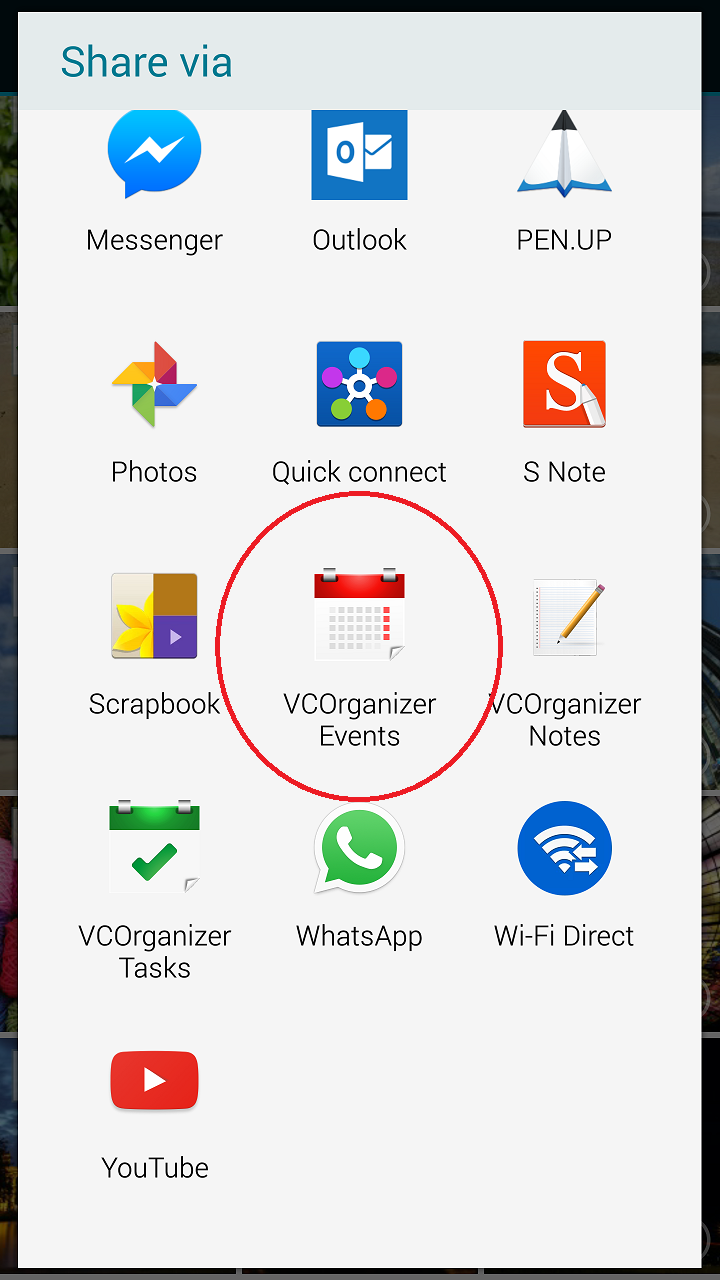
  • Depend on whether you want to add the attachments to event, task or note, select "VCOrganizer Events", "VCOrganizer Tasks" or "VCOrganizer Notes" from the "Share" list.
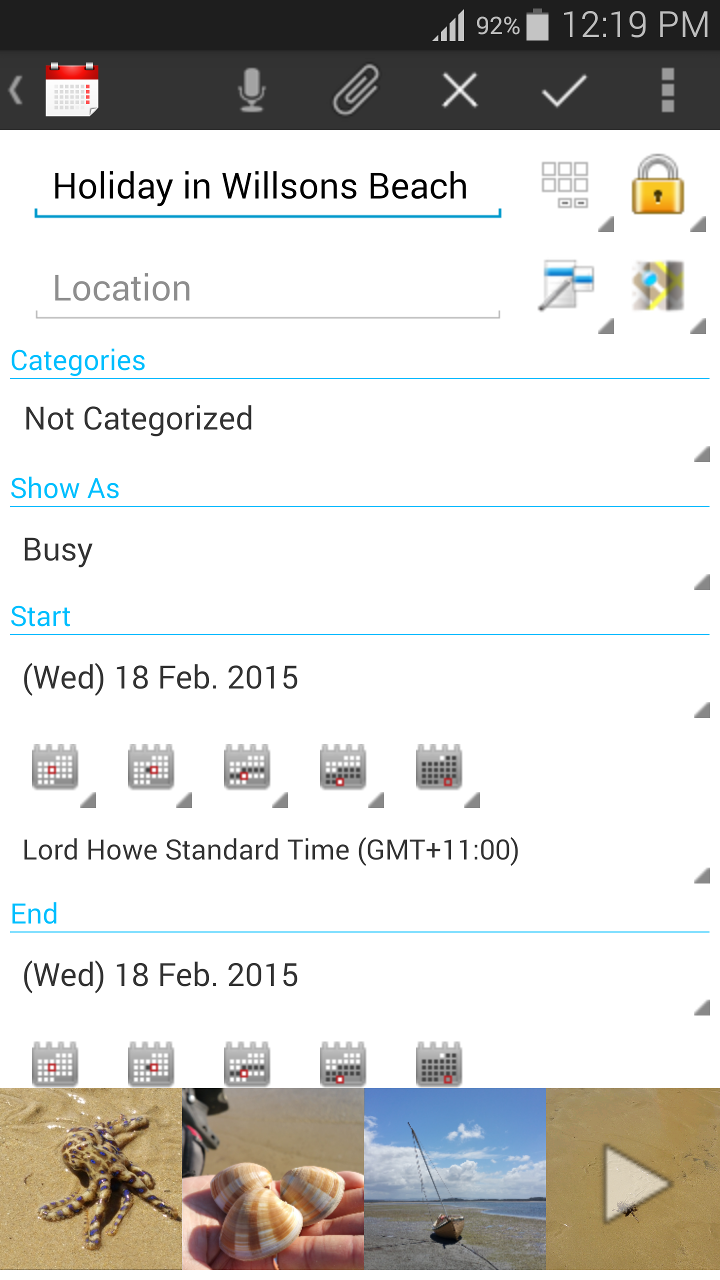
  • You should see the VCOrganizer create item screen with your photos/videos. 
  • Enter the title, and click the "Save" button.
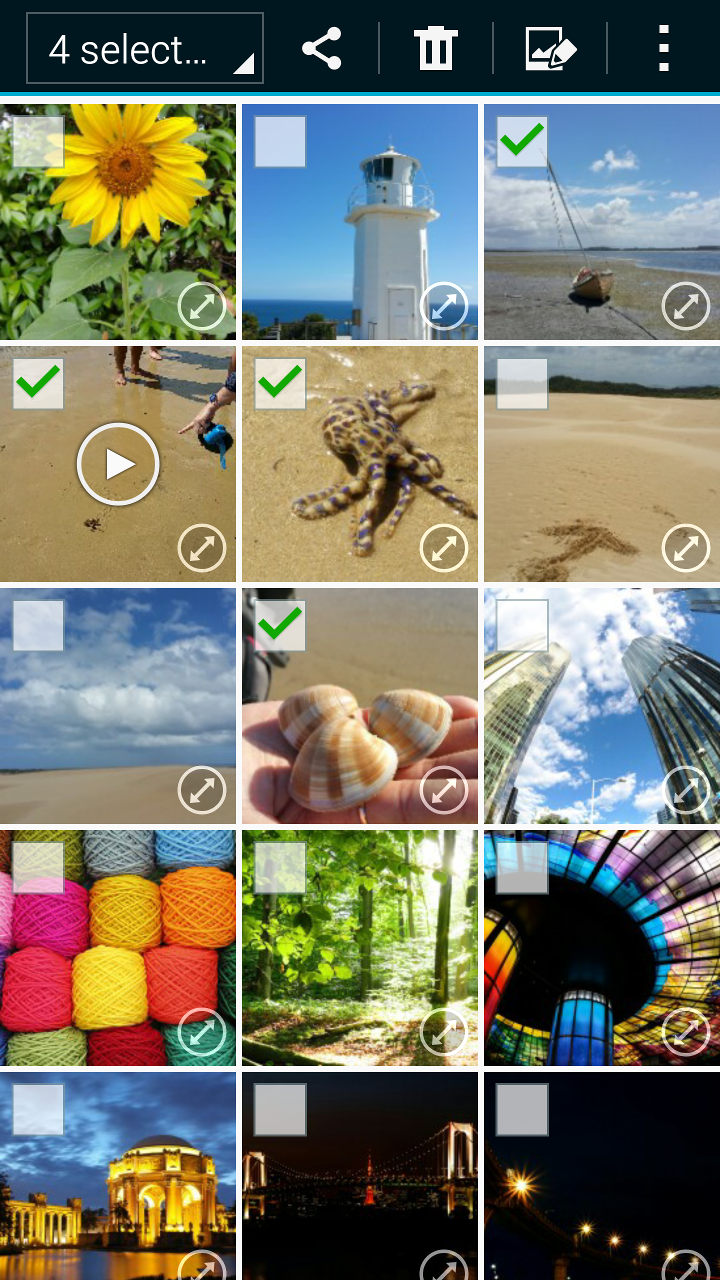

Select multiple images/videos files from Gallery.
Share the photos to VCOrganizer
Save the Events with Images 


B) How to view the attachments of an item?


  • Open the item with attachments, you should see the attachments in the horizontal listview at the bottom of the screen
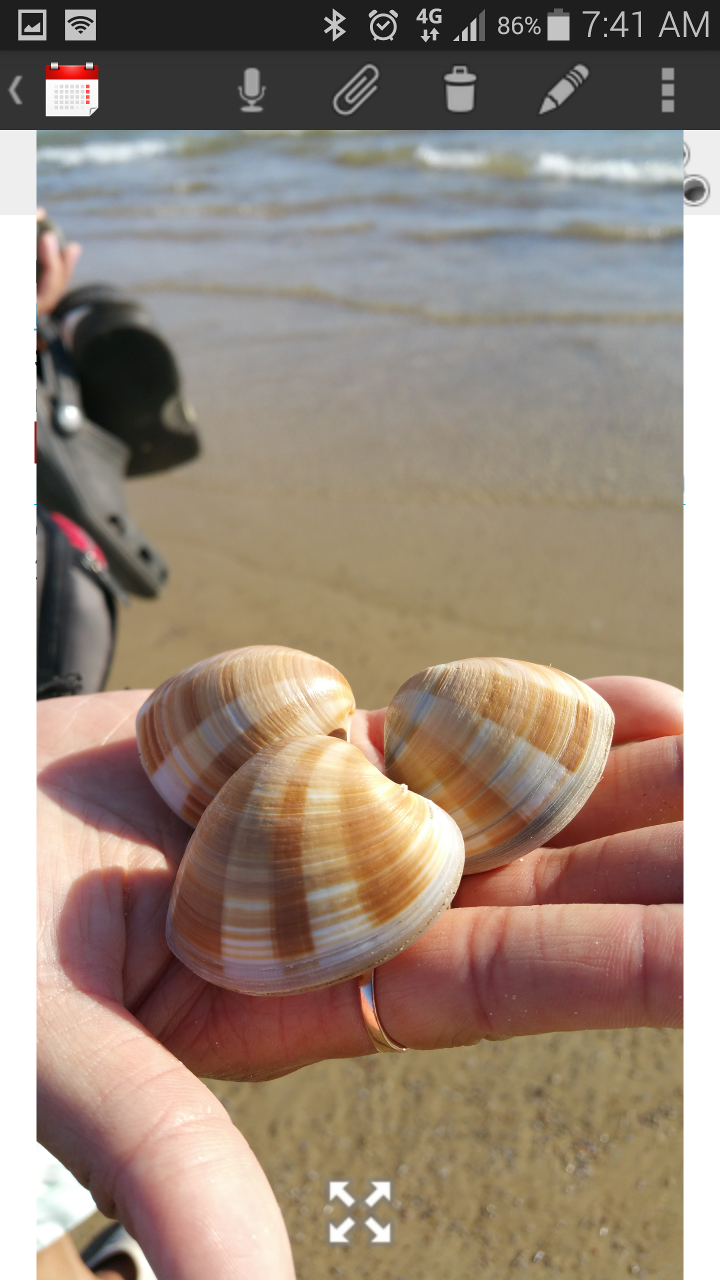
  • Click the item to open it. If it's a photo, you should see a photo preview popup. If it's a file (such as docx, txt ...etc.), it should open the default app on your device to view the file.
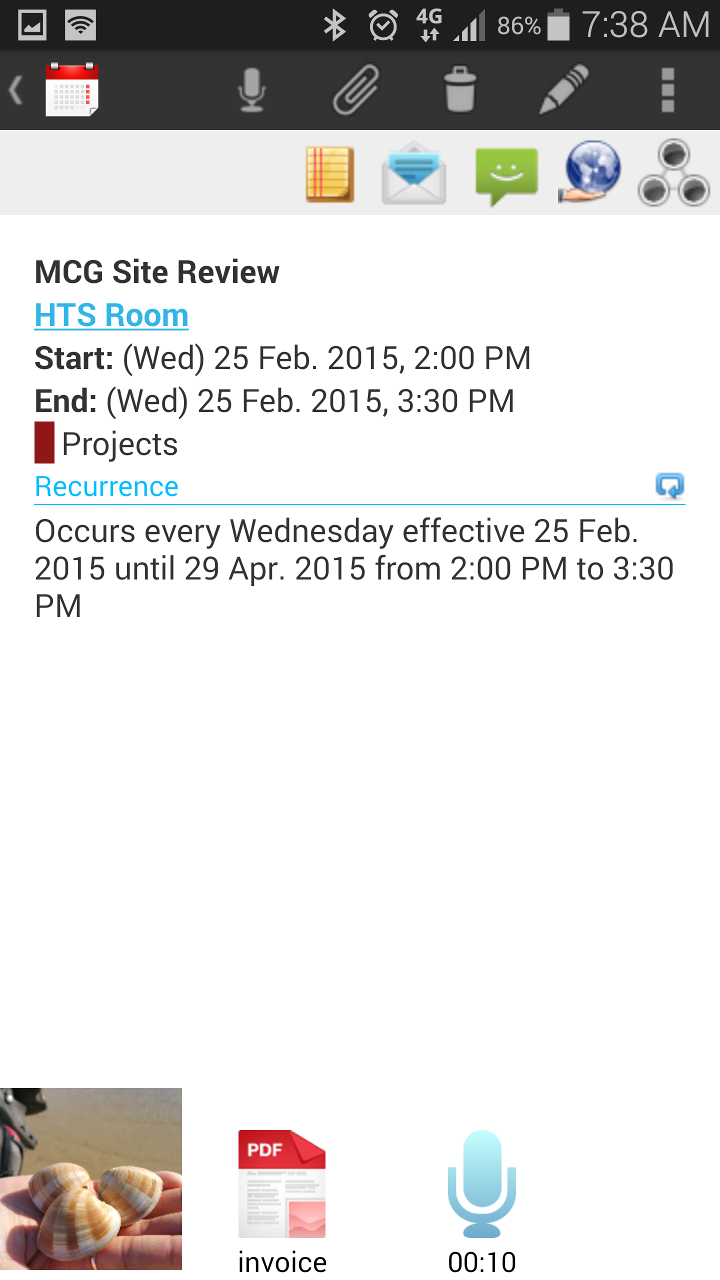

A Recurring Event with attached image, PDF file and a voice file.
Click on the image to view the preview the image.


C) How to edit the attachments of the item?


  • Open the item with attachments, you should see the attachments in the horizontal listview at the bottom of the screen
  • Click the item to open it. 
  • If the app that you use to open the item support editing, you can edit the item and save it.


D) How to display photos in my VCO Calendar App?


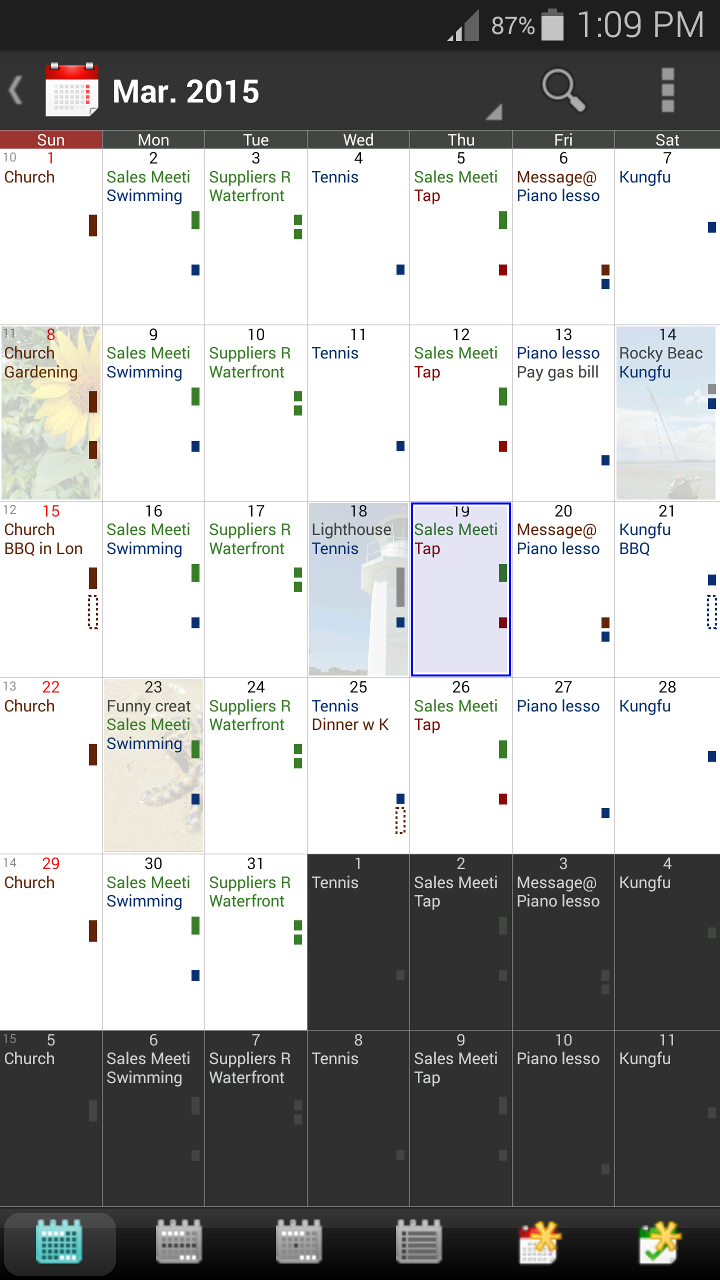
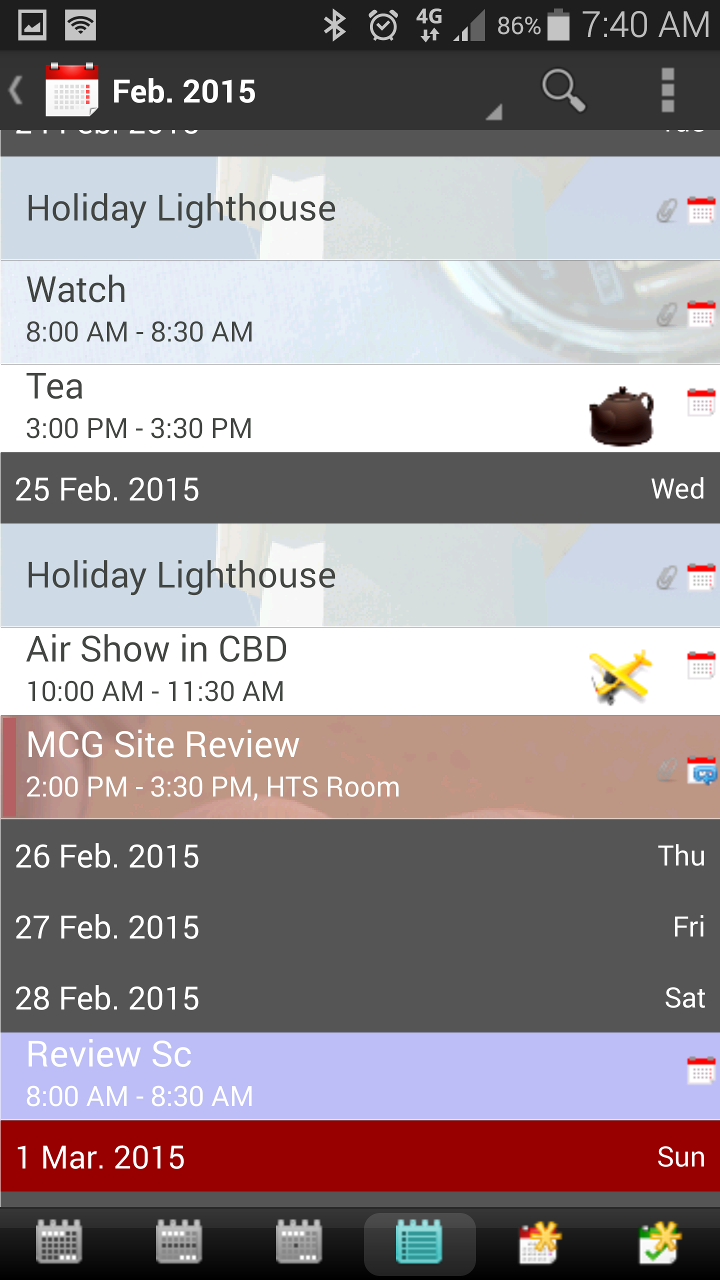
  • By default, when the item's first attachment is photo, you should see the photo (watermark background) when the item is listed in the Calendar Item list.
  • To view the photos in the Calendar, you need to switch to the "Calendar" -> Diary Mode or Grid Mode (Zoom on the Calendar to switch the calendar mode). It should show the default photo of the first events/tasks of the day. 
  • To temporarily hide the photos from the Calendar, you can simply swipe vertically on the Calendar.
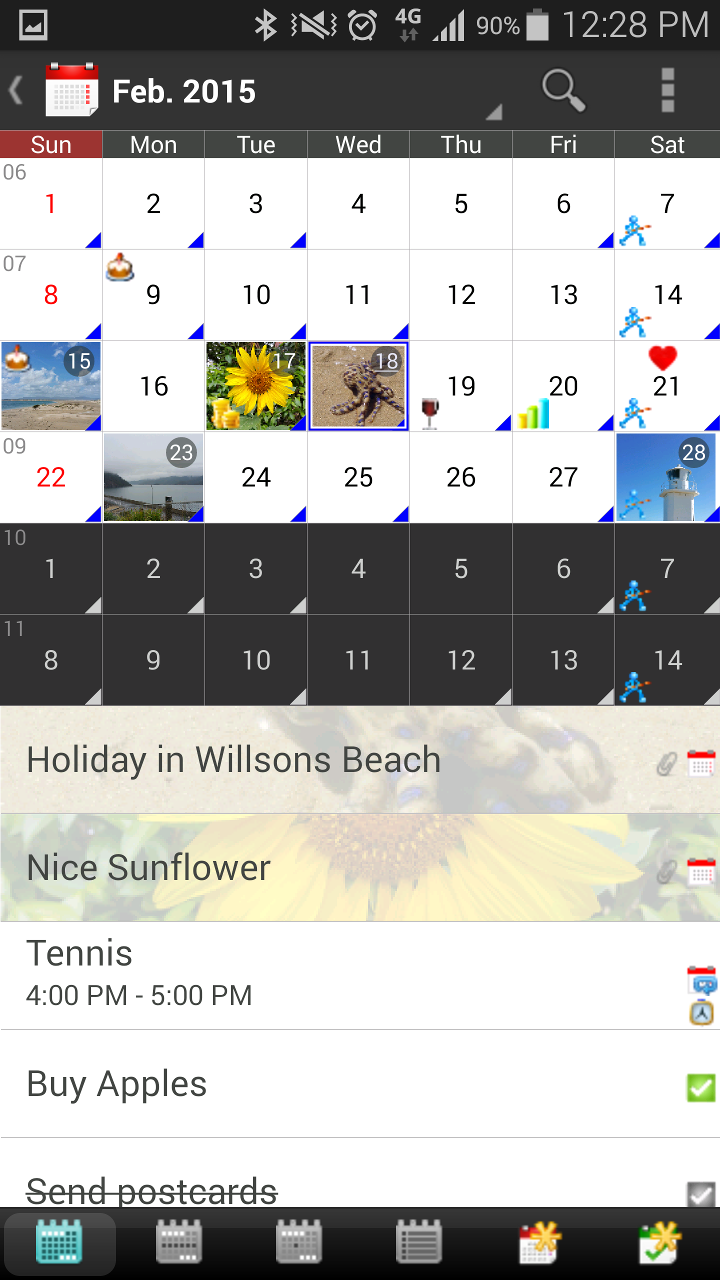
Calendar in Diary Mode with default photos
Calendar in Monthly Mode, the event time bars shown on the right. The dotted lines represent tentative schedule.

Calendar in List Mode


E) About the Encryption.


  • All the files that you added to VCOrganizer will be imported to the VCOrganizer Vault.
  • If you have enabled encryption in the VCO -> Settings, the files will be encrypted when storing in VCOrganizer Vault. (VCO won't delete the source file).
  • For performance issue, the photo, audio and video files are not encrypted.
  • If you click the item to open it, VCOrganizer will automatically checkout the item and decrypt it for you.
  • The decrypted file will be checked in again if you have edited it.  The decrypted file will be deleted from the cache when you exit the VCO screen where you open the item (e.g. the VCO Task, Note, Event or Contact edit screen). 


F) About the backup

When you backup VCOrganizer data in VCOrganizer -> Settings, the attachments will be exported to the <Main Storage>\vc_backup\vault. Only the new files or files has been updated since the last backup will be copied to the vault in the backup location (We don't delete any file from the backup vault even you have deleted it from VCOrganizer). If you have configured to sync the backup files to Cloud, please also include this <Main Storage>\vc_backup\vault directory.


G) For Real-time sync users.

If you have created/updated any items on your phone, or  perform Outlook sync using the Chat feature, the items (notes, tasks, events and contacts) will be synced in real-time. For the attached files, they will be synced automatically using the local network when your device and your PC are connected to the same network.

For the items that you have share to other devices, the files will be sent when both devices are connected to the same local network.


H) Sync with Outlook

By default, attachments sync is disabled.  On your PC, SyncCenter -> Sync Options, you can enable this feature using these options:

  • Notes -> Sync Attachments
  • Tasks -> Sync Attachments
  • Calendar -> Sync Attachments
  • Contacts -> Sync Attachments


It will only affect the items (notes, tasks, events and contacts) that you have created/modified after you have enabled this feature.

If you want to sync all the attachments to VCO on your device, in SyncCenter -> About tab, please check the "Reset Last Sync Time", and sync again. It should copy all the attachments to VCO again. It may take a long time depend on how many attachments you have. You can then disable the "Reset Last Sync Time" option.

I) Save Attachments to SyncCenter Vault on PC

By default, when attachments are synced from VCOrganizer to Outlook, it will be added to the Outlook item directly. There is a limit of total attachments size for each item (it's about 10M). When the total attachments size reach the max limit, SyncCenter will save the file in SyncCenter Vault on your PC (a directory on your PC, C:\Users\<username>\AppData\Local\Vecal\VCOrganizer\vault).

If you don't want VCOrganizer to add any attachments to your Outlook items (for example, you don't want your personal photos to sync to your company Exchange server), you can enable this option.
  • Tasks -> Sync Attachments -> Save Attachments in SyncCenter
  • Calendar -> Sync Attachments -> Save Attachments in SyncCenter
  • Contacts -> Sync Attachments -> Save Attachments in SyncCenter
Remark: By default, all notes attachments will be saved in SyncCenter Vault.

Once you have enabled it, all attachments that you created from VCOrganizer will be stored in the SyncCenter Vault. You can still sync it to other VCO devices, but it won't add the attachments to your Outlook items. However, for those attachments that you added to your items from Outlook, they will still be synced to VCOrganizer.

J) Item Default Photo

If the first attachment of the item is a photo, it will be the default photo of that item.
To change the default photo, open the item, tap and hold on the photo that you want to be set as default. You should see a popup menu and select "Set As Default" from the menu. The photo will be moved to the first of the list.

K) Item Default Sound (for Reminder)


If the first or second attachment of the item is a audio file, it will be the default sound for your reminder of the task or event. You can use the Voice recording button () to record your own reminder or add the audio file from file manager. If the audio file is not in the first two attachments but you want to set it as default, tap and hold on the audio that file from the attachments list, select "Set As Default" from the popup menu.


L) Manage VCOrganizer Attachments in Outlook (with the VCOrganizer Outlook AddIn)


Due to the limitation of Outlook, you can usually attach files up to 10M in total. However, there is no limit in VCOrganizer. When you sync files from VCOrganizer to Outlook, the file will first been added to the default Outlook item. If it reaches the limit, the files will be stored in SyncCenter Vault on your PC (C:\Users\<username>\AppData\Local\Vecal\VCOrganizer\vault\external).
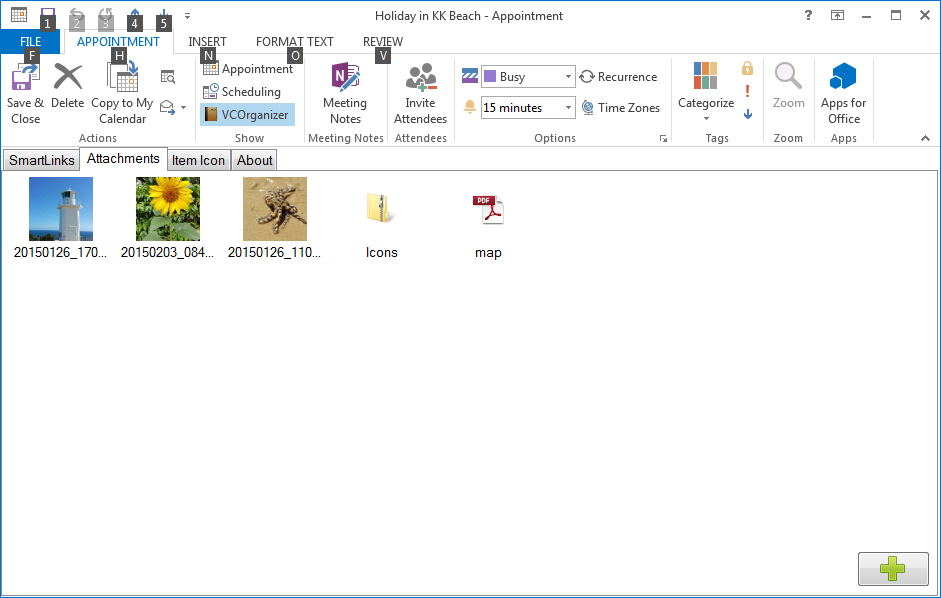
With the VCOrganizer Outlook AddIn, you view the files that SyncCenter stored in SyncCenter Vault. You can also add or delete any files from the AddIn.

To view the attachments in SyncCenter Vault, click the "VCOrganizer" button in Outlook to open the AddIn, then, click the "Attachments" button.

To add files:

  • Click the Add button and select files.
  • Drag the files from Windows File Explorer to the Attachments list.
  • Select the files from Windows File Explorer, press Ctrl+C to copy the files, and press Ctrl+V in the Attachments list to paste the copied files.

To delete files:

  • Select the files from attachments list, and press the "Delete" button or right click and select "Delete" from the menu.

To copy files from Attachments list to other directories on your PC:

  • VCOrganizer AddIn allows users to easily copy the files to any directories on your PC. 
  • Select the files from the attachments list, and press the Ctrl+C. You can then paste the files to any folder you want. Just like the normal Windows Copy/Paste.
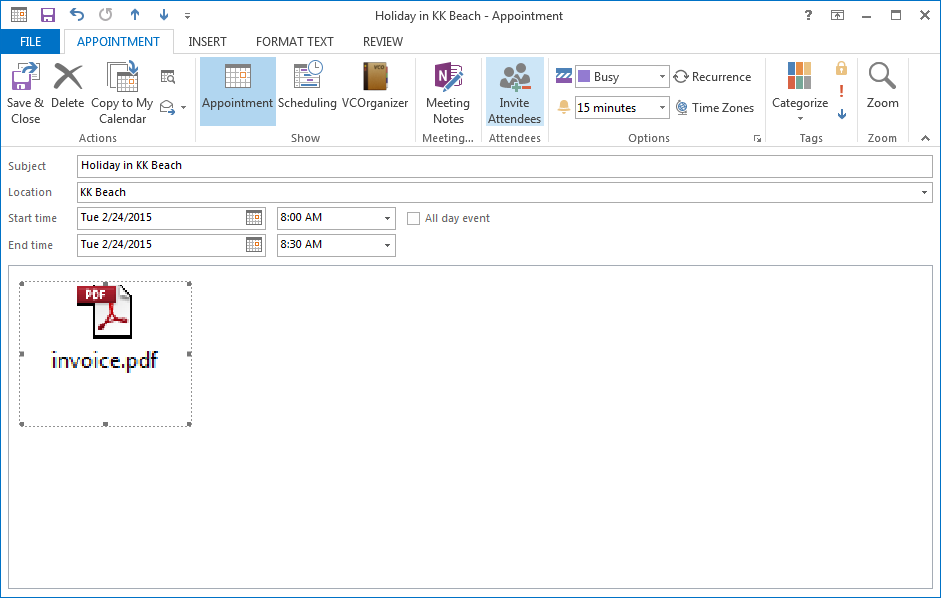

Attachments in Outlook Item Note.

Attachments in VCOrganizer Vault


M) Backup SyncCenter Vault on your PC


On your PC there are two directories in the SyncCenter Vault:

1.  C:\Users\<username>\AppData\Local\Vecal\VCOrganizer\vault\external

This is where the files are stored in SyncCenter. If you backup your Outlook data and restore to other PC, you also need to copy this folder (including all the files and subfolders in this directory) to your new PC. Depend on the username of your new PC, on your new PC, please use the <username>  of your new PC, instead of the <username> of the old PC.

For example:
If the username of old PC is "Peter" and the username of your new PC  is "PeterPon"

Copy the folder  C:\Users\peter\AppData\Local\Vecal\VCOrganizer\vault\external from your old PC to the  C:\Users\PeterPon\AppData\Local\Vecal\VCOrganizer\vault\external on your new PC


2. C:\Users\<username>\AppData\Local\Vecal\VCOrganizer\vault\,outlook

This is the folder to cache the Outlook attachments. There is NO NEED to backup this folder. Also, there is no need to migrate the content in this folder to your new  PC. The cache will be re-created when you sync your new PC with VCOrganizer.


Thursday, 12 February 2015

VCOrganizer V9 Pilot Test is Ready.

VCOrganizer V9 will be ready for User Testing soon. For existing customers, if you are interested to join the Pilot Test, please send email to support@vecal.biz

Major Enhancements in V9:


File Attachments:

  • Allow users to add attachments (including Voice, Photos, any files ..) to Notes, Tasks, Events and Contacts. You can then sync these files between Outlook and VCOrganizer.


 Security Enhancements:

  • On your device, when you enable the Encryption in VCOrganizer, you can set your own encryption password instead of using the system generated password.
  • On your PC, if you have configured Sync Password, you can enable the “SecureSync” feature which will encrypt the Outlook items and attachments when sync over WiFi or Bluetooth.
  • If encryption is enabled in VCOrganizer, files are automatically encrypted/decrypted when you open the files from VCOrganizer. Your files are also PROTECTED.
  • For performance issue, images, audio and video files will not be encrypted.
Remark:

  • Why you need to enable encryption in VCOrganizer while the Android OS already has encryption?
  • The OS encryption will protect your data when your phone is stolen. However, if your phone is being hacked, your data is still visible to hacker as they can easily read your records using the standard OS api. 


Monday, 24 November 2014

VCOrganizer Pro 8.1.1.380 for Android 5.0 Lollipop

The new VCOrganizer 8.1.1.380 has been published on Play Store.
This is a bug fixes release which fixes the crash issue when using VCOrganizer on Android 5.0 Lollipop.


VCOrganizer runs on Android 5.0 Lollipop
VCOrganizer runs on Android 5.0 Lollipop

Thursday, 6 November 2014

VCOrganizer runs on Samsung Galaxy Note 4

I just have a chance to play with the new Samsung Galaxy Note 4. It looks great in the Samsung S View Cover.          
                                                                
We tested the sync process to sync notes, tasks, appointments and contacts from Outlook to VCOrganizer on Samsung Note 4. It ran perfect and smooth.


VCOrganizer runs on Samsung Galaxy Note 4


Samsung Note 4 with Samsung S View Cover


Tuesday, 21 October 2014

How to protect your contacts data with VCOrganizer?


VCOrganizer Contacts


If you want to sync your Contacts data from Outlook to your phone, but you don’t want to sync these contacts information to your Google account on the cloud.


  1. In VCOrganizer -> Contacts -> Menu -> Settings, “Export Contacts to Mobile”, you can select “Phone-Only”.  The contacts sync from Outlook will be stored in VCOrganizer Contacts App and Android Contacts App, but not gmail account on Google cloud.
  2. Also, in option “Import contacts From Mobile”, you can also select “Phone-Only”. This is to avoid any possible duplicates. The default value is “All Accounts”, which import all contacts from all contacts accounts.  If you have the same contact on different Android Contacts Account, you may end up import more than one entries for the same contact.


If you have some very sensitive information in your contact note, you can consider not to sync these information to your Android Contacts App.


  1. In VCOrganizer -> Contacts -> Menu -> Settings, there is an option called “Do Not Sync Contacts Note to Mobile App”, please make sure you have checked this option before sync with Outlook. If this option is checked, the contact note will be kept in VCOrganizer Contacts App only, the other contacts information such as phones, email …will be synced to Android Contacts App. The contact notes will be stored in VCOrganizer only and they will be encrypted in VCOrganizer if encryption is enabled.
  2. In VCOrganizer Settings -> make sure the “Encryption” is enabled. By default, it’s disabled.
  3. You also need to enable the Pattern Lock in VCOrganizer Settings to protect your app from being accessed by other users.


Monday, 13 October 2014

Did you know that you could change the categories default colors in VCOrganizer?

There are 25 system colors you can choose for the categories. By default, they are the same as the default colors in Outlook. 

If you don’t like the default categories’ colors, you can change it in VCO Categories -> Settings.

For example, if you don’t like the default Purple, you can change it to a darker Purple.


Tap on the purple color in the grid.


Select the color from the Color Picker and tap on the new color on the right.


It will display the new color.

Wednesday, 1 October 2014

VCOrganizer Build 370 has been released.


New Features


SmartLinks

You can select multiple items when linking items. SmartLinks data can be synced to Outlook. You can sync the SmartLinks information from one device to the other devices.

Tasks/Events Icon

Item icon is synced to Outlook. You can sync the tasks/events icon from one device to the other devices.

VCOrganizer Outlook Add-in

This is an optional program. With the new VCOrganizer Outlook Add-in installed:
  1. You can use the SmartLinks feature to link items from Outlook (add, delete or modify) and the SmartLinks information will be synced back to VCO. 
  2. You can change item icon from Outlook (e.g. add an icon to your task or event)

Real-time sync

Real-time sync in vcChat is now integrated with AutoSync. If AutoSync feature enabled and the new Outlook Add-in installed on your PC, when you create/update/delete items in Outlook or VCO, they will be synced automatically in real-time. There is no need to schedule the sync interval anymore.

Others

  • In Calendar -> List view, it supports multi-select mode.
  • You can import more than one Android Calendar to VCO Calendar (e.g. the Public Holidays Calendar). In VCO Calendar -> Menu -> Import, you can select which Calendar you would like to import. This is a one-time import. It won't import any items if you update the events in Android Calendar after the import. But you can always rerun the import anytime you want. If you update the imported events in VCO, they will be synced to you Android Calendar. If you want to keep the events in sync with your Android Calendar, in VCO Calendar -> Menu -> Settings: "Sync with Mobile Calendar", you can select with Android Calendar you want to sync with.
  • Set tasks/events icon in multi-select mode.
  • The UI is fine-tune for high resolution screen and tablet devices such as the Samsung Tab S.

Bug Fixes

  • If the new item is synced to Outlook using vcChat but VCO doesn't receive any ACK from Outlook, it may cause duplicate.
  • After disabling the item alert or deleting the item, VCO still fires off the alerts.
  • Pattern login is slow


Thursday, 18 September 2014

VCOrganizer Pilot Test

The new release of VCOrganizer is ready for user testing. If you would like to join the test, please send the following information to support@vecal.biz.

1. Device Model:
2. Android OS version:
3. Windows Version (32bit/64bit):
4. Outlook Version (32bit/64bit):
5. SyncCenter Version installed on your PC:
6. VCO version installed on your phone (In VCO -> Settings):
7. Have you purchased AutoSync (Yes/No)?


New Features

SmartLinks

You can select multiple items when linking items. SmartLinks data can be synced to Outlook. You can sync the SmartLinks information from one device to the other devices.

Tasks/Events Icon

Item icon is synced to Outlook. You can sync the tasks/events icon from one device to the other devices.

VCOrganizer Outlook Add-in

This is an optional program. With the new VCOrganizer Outlook Add-in installed:
  1. You can use the SmartLinks feature to link items from Outlook (add, delete or modify) and the SmartLinks information will be synced back to VCO. 
  2. You can change item icon from Outlook (e.g. add an icon to your task or event)

Real-time sync

Real-time sync in vcChat is now integrated with AutoSync. If AutoSync feature enabled and the new Outlook Add-in installed on your PC, when you create/update/delete items in Outlook or VCO, they will be synced automatically in real-time. There is no need to schedule the sync interval anymore.

Others

  • In Calendar -> List view, it supports multi-select mode.
  • You can import more than one Android Calendar to VCO Calendar (e.g. the Public Holidays Calendar). In VCO Calendar -> Menu -> Import, you can select which Calendar you would like to import. This is a one-time import. It won't import any items if you update the events in Android Calendar after the import. But you can always rerun the import anytime you want. If you update the imported events in VCO, they will be synced to you Android Calendar. If you want to keep the events in sync with your Android Calendar, in VCO Calendar -> Menu -> Settings: "Sync with Mobile Calendar", you can select with Android Calendar you want to sync with.
  • Set tasks/events icon in multi-select mode.
  • The UI is fine-tune for high resolution screen and tablet devices such as the Samsung Tab S.

Bug Fixes

  • If the new item is synced to Outlook using vcChat but VCO doesn't receive any ACK from Outlook, it may cause duplicate.
  • After disabling the item alert or deleting the item, VCO still fires off the alerts.
  • Pattern login is slow


Wednesday, 17 September 2014

VCOrganizer Outlook AddIn

The VCOrganizer Outlook AddIn allows user to manage VCOrganizer data using the Outlook interface. You can do the following with this AddIn:
  • Link and unlink notes/tasks/events/contacts
  • Edit Tasks/Events icon.
  • Open the linked items
  • Links and Icons can be synced to VCOrganizer on your Android devices.
  • Manage VCOrganizer Attachments in Outlook
Remark:

  • You need to upgrade to the latest VCOrganizer  (Build 369 or above).
  • This is optional program. VCOrganizer can still sync with Outlook without installing this AddIn. But you must need to install SyncCenter on your PC.


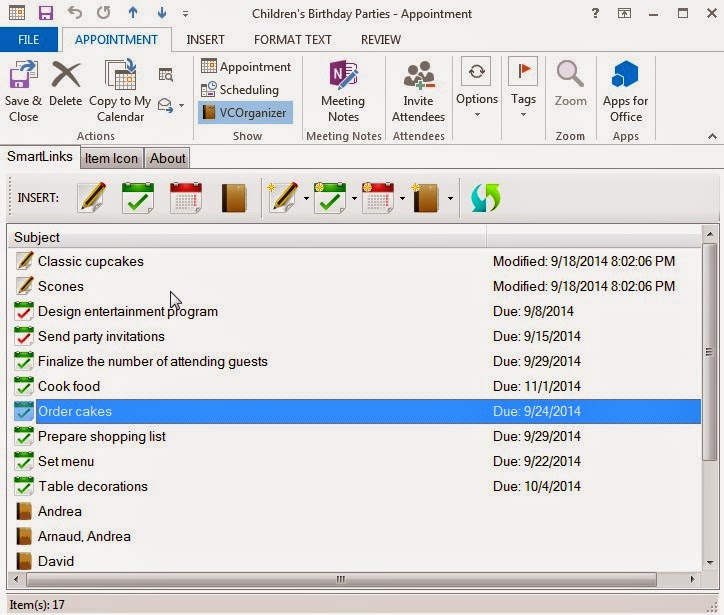
SmartLinks which links an Outlook Appointment to notes, tasks and contacts 


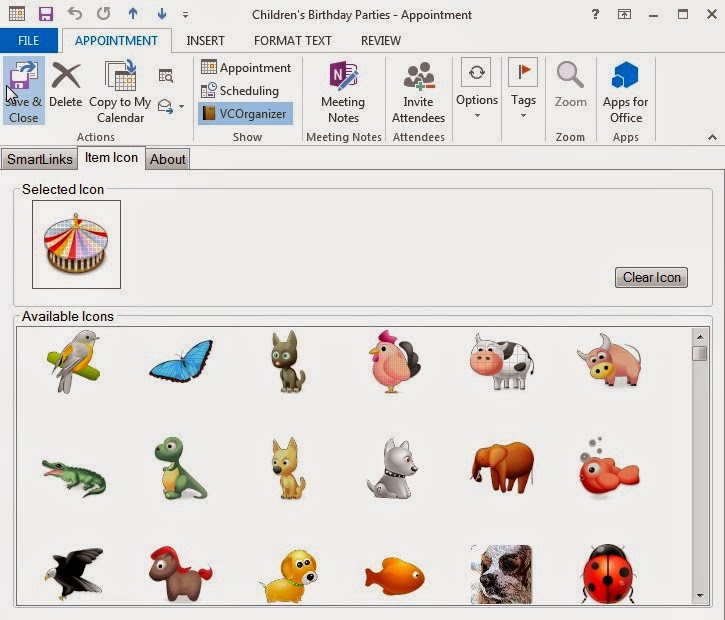
You can assign icon to Task and Appointment


Steps to Link Items


The following example will show you how to link the tasks and contacts to an event (Appointment).


Open or create an event from Outlook. Click the VCOrganizer icon () in the toolbar to open the VCOrganizer region.


In the VCOrganizer region, you can see the "SmartLinks" and "Icon" tab.


 In the "SmartLinks" tab, click the "Add Task" button () to open the "Select Tasks" dialog.


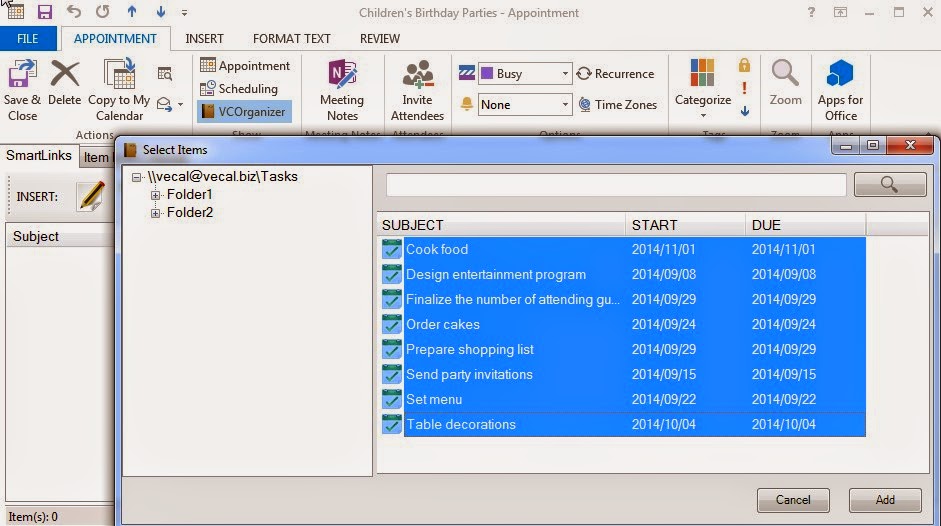
In the "Select Tasks" screen, you can select the tasks you would like to add and then click the "Add" button.


Now, you should see the tasks in the event. To open the linked item, just double-click on the item in the list. To unlink items, select the items from the list and press the delete button on Keyboard or right-click on the items and select the "Unlink Selected Item(s)" from the menu.


You can also create new tasks (notes, events or contacts) and link it to this event directly. To create a new task and link to this event, click the "New Task" button ().  If you want to create the new task in different folder, please select the dropdown menu (next to the New Task button) and select the folder from the dropdown list.


In the Icon tab, you can also assign icon to this event.


When the event is synced to VCOrganizer, you can see the event icon and it's linked items.


To manage the SmartLinks items, tap on the "SmartLinks" icon () to open the SmartLinks menu. To add or delete any links, select "Manage SmartLinks". If you want to create a new items, such as creating a new note, select "Create Linked Note".


In the Manage SmartLinks screen, you can add/delete any links. To add items, you can tap on the Events, Tasks, Notes or Contacts icon in the toolbar. 


Additional Information

  • When you link items in subfolders, if you are using VCO Pro, you will only see the tems in the default folder to VCO Pro on your device. It's because VCO Pro only sync items in the default folders.
  • If you are using VCO Enterprise+ or VCOrganizer Pro with Enterprise extension, you will see the linked items that created in the subfolders.
  • The SmartLinks internal format has been changed. For items with old format, the SmartLinks information won't sync to Outlook. To upgrade to the new SmartLinks, open the item and select "Manage SmartLinks" from the SmartLinks icon. It will upgrade automatically. 


Manage VCOrganizer Attachments in Outlook


Due to the limitation of Outlook, you can usually attach files up to 10M in total. However, there is no limit in VCOrganizer. When you sync files from VCOrganizer to Outlook, the file will first been added to the default Outlook item. If it reaches the limit, the files will be stored in SyncCenter Vault on your PC (C:\Users\<username>\AppData\Local\Vecal\VCOrganizer\vault\external).
With the VCOrganizer Outlook AddIn, you view the files that SyncCenter stored in SyncCenter Vault. You can also add or delete any files from the AddIn.

To view the attachments in SyncCenter Vault, click the "VCOrganizer" button in Outlook to open the AddIn, then, click the "Attachments" button.

To add files:

Click the Add button and select files.
Drag the files from Windows File Explorer to the Attachments list.
Select the files from Windows File Explorer, press Ctrl+C to copy the files, and press Ctrl+V in the Attachments list to paste the copied files.

To delete files:

Select the files from attachments list, and press the "Delete" button or right click and select "Delete" from the menu.

To copy files from Attachments list to other directories on your PC:

VCOrganizer AddIn allows users to easily copy the files to any directories on your PC.
Select the files from the attachments list, and press the Ctrl+C. You can then paste the files to any folder you want. Just like the normal Windows Copy/Paste.


Attachments in Outlook Item Note.


Attachments in VCOrganizer Vault


Backup SyncCenter Vault on your PC


On your PC there are two directories in the SyncCenter Vault:

1.  C:\Users\<username>\AppData\Local\Vecal\VCOrganizer\vault\external
This is where the files are stored in SyncCenter. If you backup your Outlook data and restore to other PC, you also need to copy this folder (including all the files and subfolders in this directory) to your new PC. Depend on the username of your new PC, on your new PC, please use the <username>  of your new PC, instead of the <username> of the old PC.

For example:
If the username of old PC is "Peter" and the username of your new PC  is "PeterPon"

Copy the folder  C:\Users\peter\AppData\Local\Vecal\VCOrganizer\vault\external from your old PC to the  C:\Users\PeterPon\AppData\Local\Vecal\VCOrganizer\vault\external on your new PC


2. C:\Users\<username>\AppData\Local\Vecal\VCOrganizer\vault\,outlook
This is the folder to cache the Outlook attachments. There is NO NEED to backup this folder. Also, there is no need to migrate the content in this folder to your new  PC. The cache will be re-created when you sync your new PC with VCOrganizer.


For more information regarding attachments, please see our online Attachments Online Help